DRAFT: Kenton has not reviewed this page yet. Items in [brackets] still need his details.
Getting started with your k10n
This guide takes an assembled k10n Mobile from the box to its first message. It covers Meshtastic. If you ordered your k10n with MeshCore, see the note at the end.
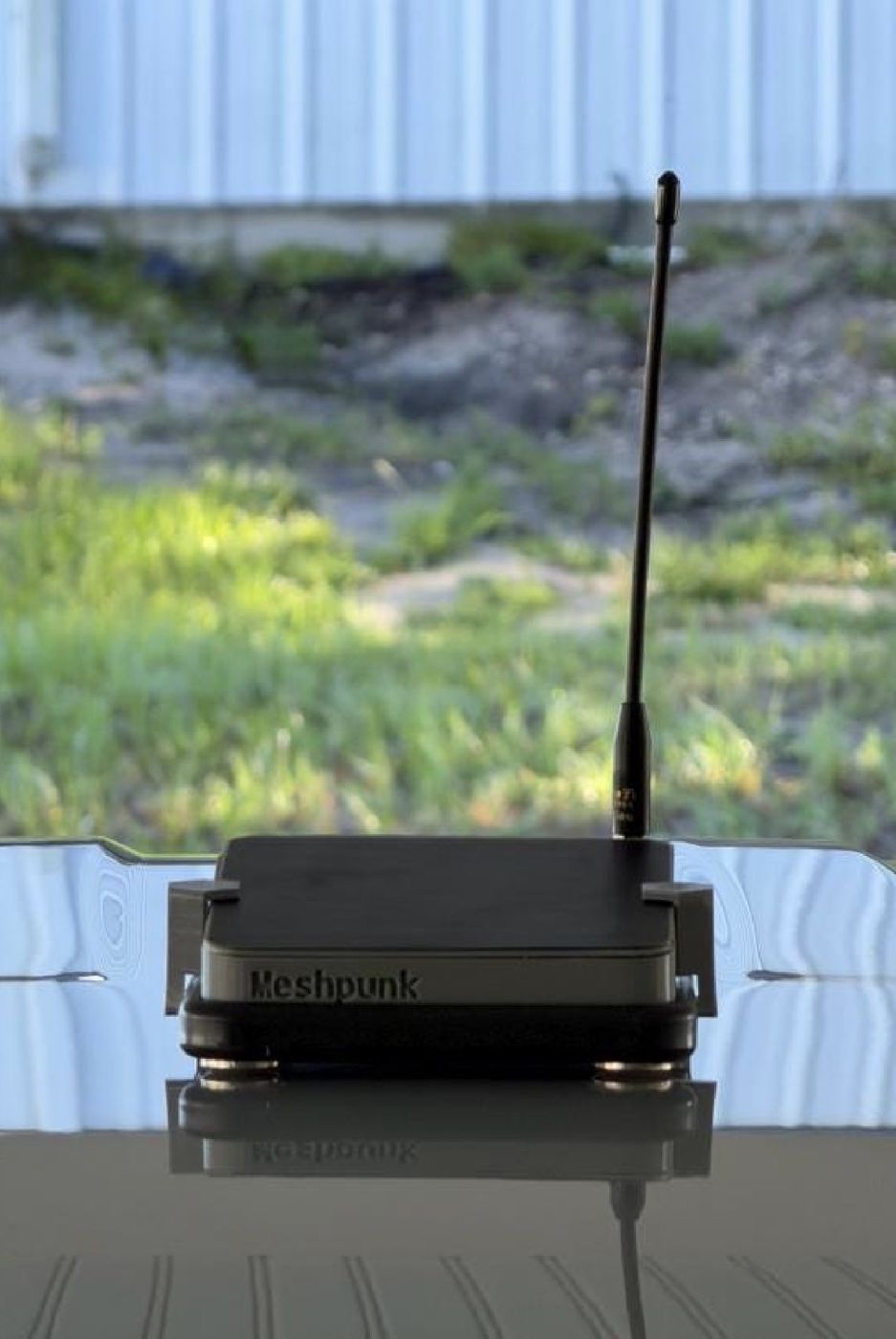
1. Put the antenna on first
Screw the antenna onto the gold connector at the corner of the node, finger tight.
Never power the node without the antenna attached. Transmitting with no antenna can damage the radio.
2. Power it up
[How the node turns on and how to tell it is running. For example: it ships switched on and charged, or where the switch or battery connector is.]
Leave it in the sun for a while if the battery is low. The solar lid charges it.
3. Pair it with your phone
- Install the Meshtastic app for iPhone or Android.
- Turn on Bluetooth and open the app.
- Pick your k10n from the list of nearby devices.
- Enter the pairing PIN. The k10n has no screen, so it uses the Meshtastic default:
123456. [Confirm, or replace with your custom PIN.]
4. Set your region
In the app, open the radio settings and set the region to match where you live, for example US. The node will not transmit until a region is set. [Remove this step if you set the region before shipping.]
5. Name your node
Give it a long name and a short name of up to four characters. This is how other people on the mesh see you.
6. Put it on your roof
Set the node on a clean, flat steel part of the roof with the antenna pointing up. The magnets hold it in place. Wipe the spot first so grit doesn’t scratch the paint.
[Any advice you give buyers on placement, car washes, or roofs that aren’t steel, such as glass or aluminum.]
7. Send your first message
Open the default channel in the app and say hello. If other nodes are in range, they show up in the node list within a few minutes.
Using MeshCore instead
[If you ship MeshCore units: which app to install and how pairing differs.]
Something not working?
Message Meshpunk through the Etsy shop.